core.hub

CORE SHIFT / IPHONE / EARLY ACCESS

Your places.
Ready to go.

Save a spot. Move your location.
Bring it back when you’re done.

Get set up

First time? Start below. Already set up? Grab the update.

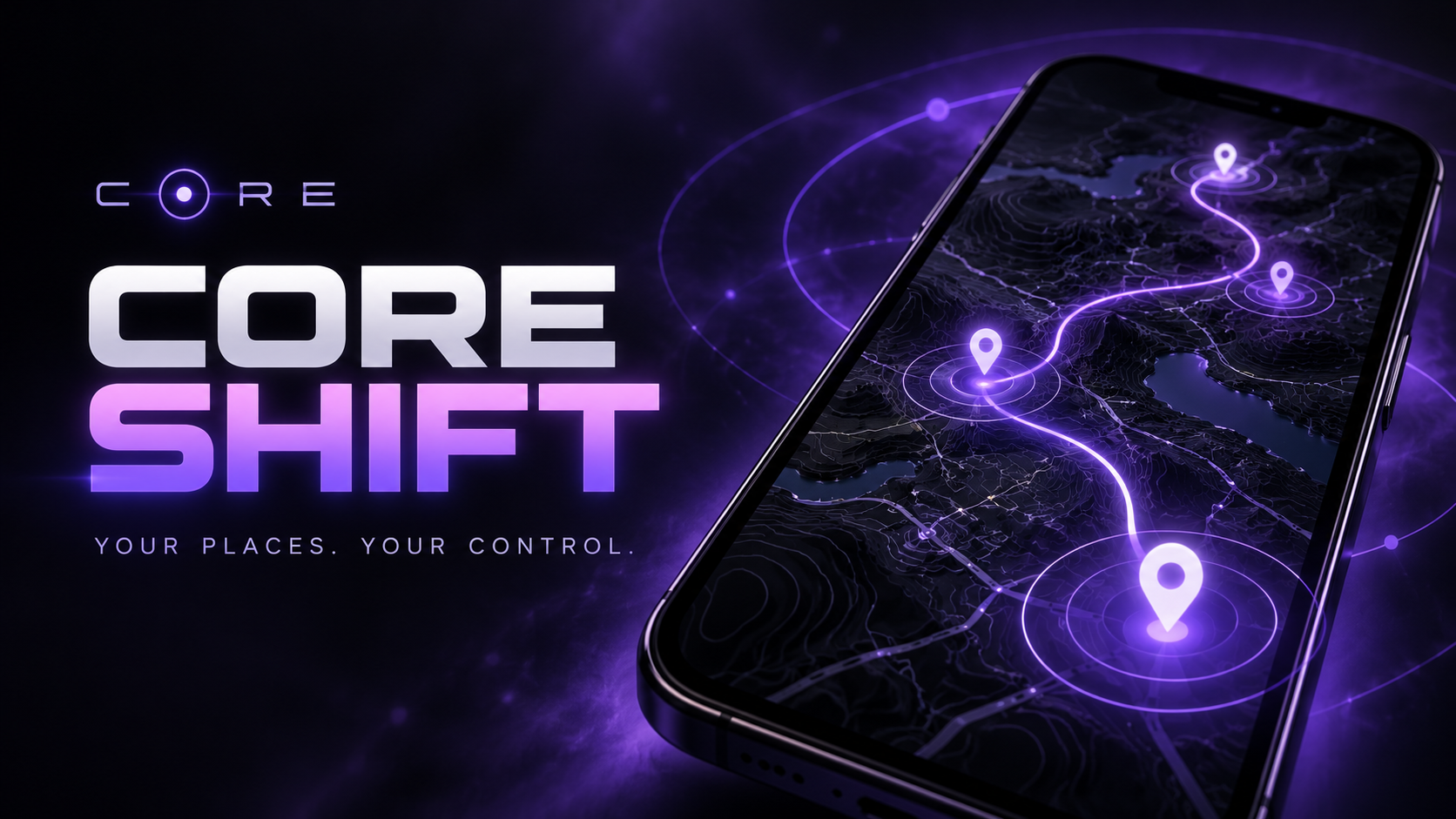
Core Shift promotional artwork: a glowing route between location pins
Core Shift · Promotional artwork
01 Set up SideStore02 Install & pair03 Pick your place

A SHORTER WAY IN

Let’s get your iPhone ready.

Connect your iPhone to a Windows computer. Core Setup checks the device and shows the next action automatically. Apple sign-in and phone permission prompts stay on your own devices.

CORE SETUP / WINDOWS

Plug in. See what’s next.

A desktop guide that checks your connected iPhone, Developer Mode and installed apps. No manual checkboxes. Your device details stay on your computer.

Download Core Setup ↓

Windows 10/11 x64 · 40.7 MB · Extract the ZIP, then open CoreSetup.exe. Unsigned early access.

01 Connected iPhone & computer trust

02 iOS & Developer Mode

03 SideStore, LocalDevVPN & Core Shift

04 Pairing status & the next action

Apple sign-in, VPN permission and the final location test happen on your iPhone. Installed apps alone don’t prove those steps succeeded.

Already have SideStore working? Install Core Shift directly on your iPhone ↗

Other computers & step-by-step reference
Before you start

Core Shift requires iOS 18 or later, Developer Mode, LocalDevVPN and a valid RPPairing file. Tested on one iPhone 18 Pro Max running iOS 27.0.1; other devices and versions are not yet verified.

For a first setup, have a computer, USB cable, Wi-Fi and your Apple Account ready. No Roam Control or LiveContainer installation is required.

ONE-TIME / IPHONE

Make SideStore ready.

  1. In iPhone Settings → General → VPN & Device Management, trust your developer entry. Complete any restart prompts.
  2. Turn on Settings → Privacy & Security → Developer Mode; confirm after restarting.
  3. Connect LocalDevVPN. In SideStore, sign in using the same Apple Account as iloader.
  4. Refresh SideStore itself in My Apps before installing Core Shift.

For exact screens, use the official installation guide ↗.

IPHONE / WI-FI + LOCALDEVVPN

Install Core Shift.

Open this page in Safari on your iPhone. With SideStore installed, signed in and working, tap below and confirm the installation there.

Install with SideStore ↗

This button opens SideStore; it only works on an iPhone with SideStore installed.

Button didn’t open SideStore?

Download the IPA in Safari. Open SideStore → My Apps → +, then select it from Files → Downloads.

Already have Core Shift?

Install the update over your existing app using the same Apple Account. Export a bookmark backup first. Don’t delete the app; deleting it removes its local data.

ONE-TIME / YOUR IPHONE’S PAIRING

Connect Core Shift to your iPhone.

Use the remote pairing file created for your own phone. It is different from a lockdown-only pairing file.

  1. In Core Shift, open Settings → Import RPPairing file.
  2. Look in Files → On My iPhone → SideStore for PairingFile_RemoteRP.plist, if available. Select it.
  3. Check that Core Shift Settings says RPPairing file installed.
No remote pairing file in Files?

With your phone connected and unlocked, open iloader → Manage Pairing File and use Place beside SideStore. Check Files again. Core Shift itself is not in iloader’s supported placement list.

If the file still isn’t visible, iloader’s advanced export can save the combined remote-pairing file on your computer. Transfer that file to your own iPhone’s Files app and import it in Core Shift. Keep the file private; never send it to friends or upload it to this Hub.

If export hangs, stop there and use the iloader troubleshooting guide ↗. Don’t delete a working SideStore pairing as a first step.

What about “Pair on this iPhone”?

This option is available on iOS 27, but code prompts were unreliable in our test. Importing an existing RPPairing file is the recommended route for this release.

IPHONE / FIRST CHECK

Try a location. Then restore GPS.

  1. Stay on Wi-Fi and connect LocalDevVPN. Allow Core Shift’s local-network prompt.
  2. Open Core Shift, wait six seconds for discovery, choose a public test location and start it.
  3. Check your position in Maps. Return to Core Shift and use its restore GPS control, then check Maps again.

Have saved places? Use Settings → Import or back up bookmarks to preview and merge your own Core Shift or Krypt Ghost backup.

AFTER SETUP

A small everyday routine.

On Wi-Fi

Connect LocalDevVPN, open Core Shift and choose your location. Use Restore GPS when finished.

Away from Wi-Fi

Keep LocalDevVPN on. Temporarily turn cellular data off before starting or changing a location, then turn data back on. Restoring GPS worked with data on in our test.

Starting or changing with cellular data on is a known limitation in 0.1.2.

Keep apps refreshed

With a free Apple Account, check SideStore and refresh both apps before their seven-day expiry. Use Wi-Fi and LocalDevVPN. Don’t rely on background refresh alone.

Keep Core in SideStore.

Add the Core source once to browse this release and future published updates in SideStore.

SideStore must already be installed. The source link is new; installation from the source still needs an iPhone check.

Add Core to SideStore ↗View source JSON

If something gets stuck.

Developer tunnel error, or error 16/0?

Confirm LocalDevVPN is connected. Test on Wi-Fi first, wait six seconds after returning to Core Shift, then retry discovery in Settings. Away from Wi-Fi, turn cellular data off before starting or changing locations; re-enable it afterward. If it still fails, keep the full error and discovery status for troubleshooting.

SideStore sign-in fails?

Use the current stable release and follow SideStore’s sign-in troubleshooting ↗. Anisette server availability can affect sign-in. Enter credentials only in SideStore or iloader, never on this page.

App limit reached?

A free Apple Account allows three active sideloaded apps, including SideStore. Core Shift needs one available slot. See SideStore’s account limits ↗.

Will I ever need the computer again?

Routine refreshes can happen on the phone. Expired apps, device resets or iOS updates may require recovery or new pairing with a computer. See the pairing recovery guide ↗.

Can I share my pairing file or saved locations?

Each phone needs its own pairing file; keep yours private. The public app contains no personal bookmarks. Location backups are optional and imported locally in Core Shift. This Hub has no upload form for either file.

RELEASE NOTES

0.1.2 · October 29, 2026

Adds a local readiness report for Core Setup so it can read pairing-file presence and simulation status over USB. No pairing keys or bookmarks are included. Build and automated tests passed; the new phone-side report still needs an on-device check. Existing location behavior is unchanged.

Unsigned IPA for SideStore signing · iOS 18+ · Build 5

Verify download & open-source credits

SHA-256: 4a81a35803b0747ab0169816e288cc5e3ad76cdc0c7dc6dae5279810f7cdef31

Download checksum · Licenses & attribution

Core Shift is based on the MIT-licensed Locus project and uses idevice. Full notices are included in the downloadable app. Core is independent of Locus, SideStore, iloader and Roam Control.